1. Open File Explorer
2. Type \\\\wsl$ in the address bar
3. My distro shows up and click on it and you can see the file system.
<aside> 💡 Original Post: https://devblogs.microsoft.com/commandline/access-linux-filesystems-in-windows-and-wsl-2/
</aside>
Starting with Windows Insiders preview build 20211, WSL 2 will be offering a new feature: wsl --mount. This new parameter allows a physical disk to be attached and mounted inside WSL 2, which enables you to access filesystems that aren’t natively supported by Windows (such as ext4).
So, if you’re dual booting with Windows & Linux using different disks, you can now access your Linux files from Windows!
To mount a disk, open a PowerShell window with administrator privileges and run:
wsl --mount <DiskPath>
To list the available disks in Windows, run:
GET-WMIOBJECT -query "SELECT * from Win32_DiskDrive"
OR
wmic diskdrive list brief
To unmount and detach the disk from WSL 2, run
wsl --unmount <Diskpath>
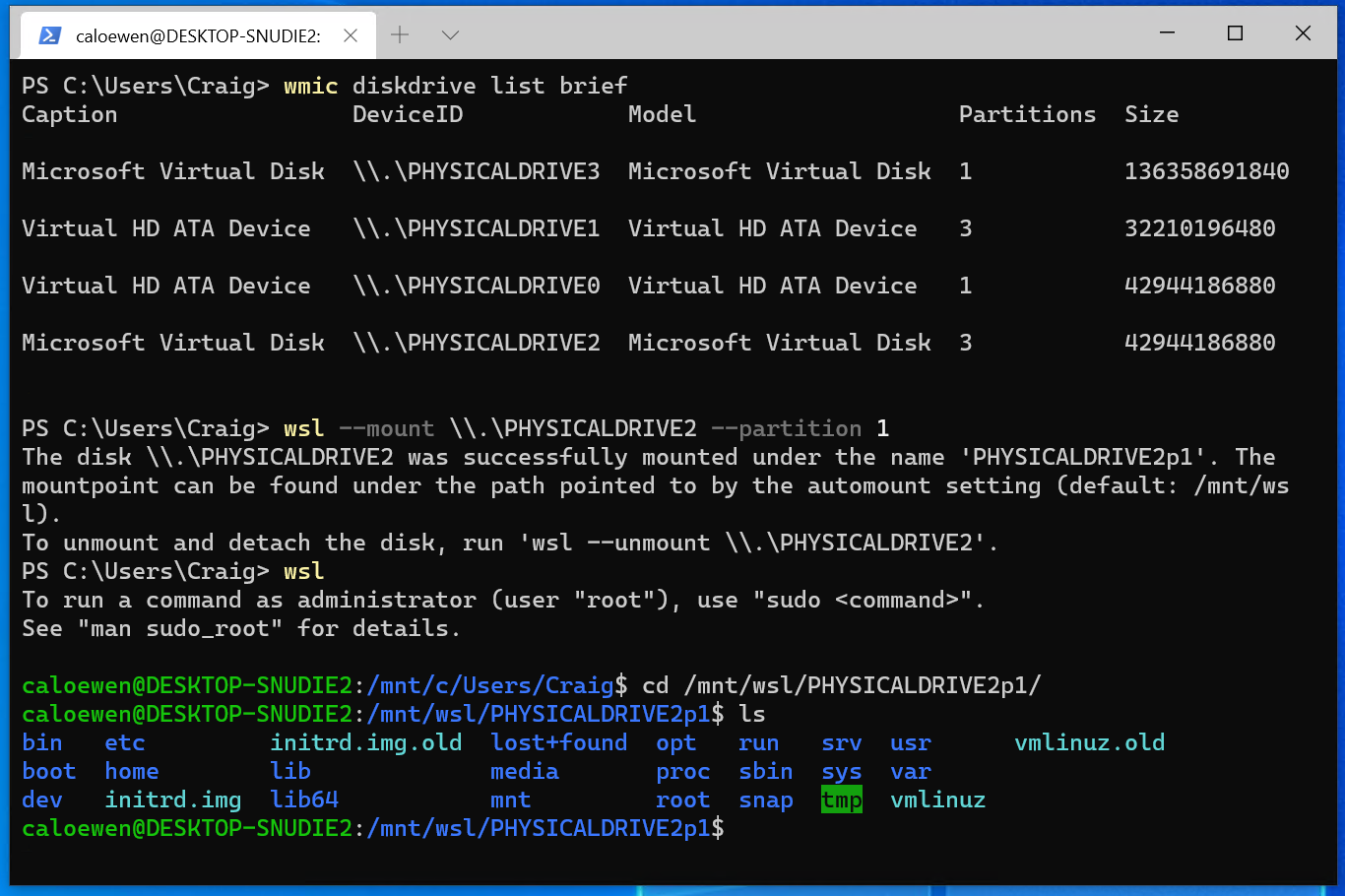
The disks paths are available under the ‘DeviceID’ columns. Usually under the \\\\.\\\\\\.\\PHYSICALDRIVE* format. Below is an example of mounting a specific partition of a given hard disk into WSL and browsing its files.
Once mounted, it’s also possible to access these disks through the Windows explorer by navigating to \wsl$ and then to the mount folder.