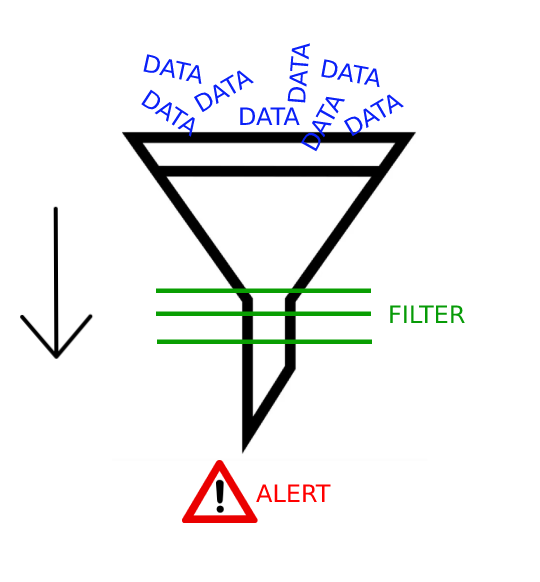
This lesson discusses what SIEM is, why it is used in a SOC, and how SIEM relates to the SOC analyst.
SIEM is a security solution that combines security information and event management, which involves real-time logging of events in an environment. The ultimate purpose of event logging is to detect security threats.
Overall, SIEM products have a lot of features. The ones that interest us most as SOC analysts are those that collect and filter data and provide alerts for suspicious events.
Example alert: If someone on a Windows operating system tries to enter 20 incorrect passwords in 10 seconds, this is suspicious activity. It is unlikely that someone who has forgotten their password would try to re-enter it that many times in such a short period of time. So we create a SIEM rule/filter to detect such activity that exceeds the threshold. Based on this SIEM rule, an alert will be generated when such a situation occurs.
Some popular SIEM solutions: IBM QRadar, ArcSight ESM, FortiSIEM, Splunk, etc. To get a better picture, you can visit the "Monitoring" page on LetsDefend.
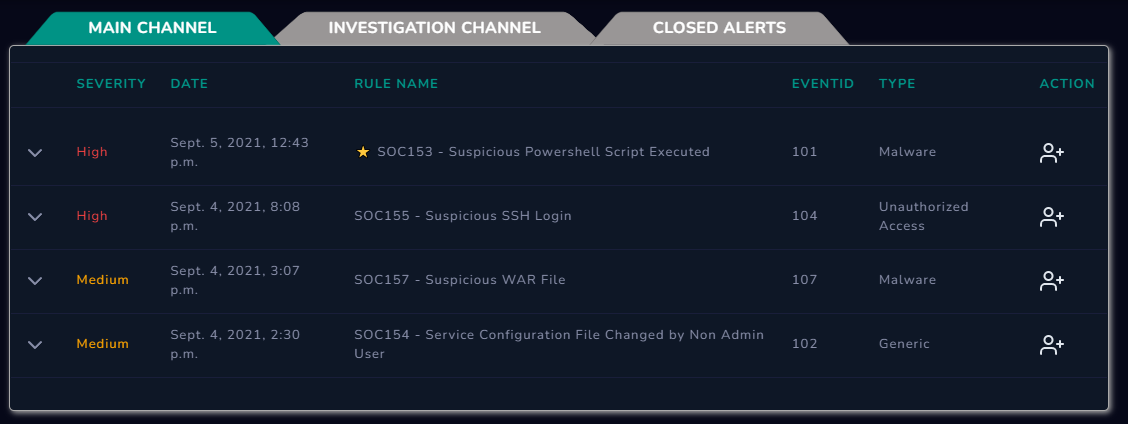
Although SIEM solutions have many features, SOC analysts typically only track alerts. There are other groups/people responsible for developing configurations and rule correlations.
As mentioned above, alerts are generated from data that passes through filters. Alerts are first analyzed by a SOC analyst. This is where a SOC analyst's job in the security operations center begins. In essence, they have to determine whether the generated alert is a real threat or a false alert.
For a better understanding, let's go back to the "Monitoring" page; as you can see below, there are various alerts on the SIEM interface. A SOC analyst should analyze the details related to these alerts with the help of other SOC products (such as EDR, Log Management, Threat Intelligence Feed, etc.) and ultimately determine whether they are real threats or not.
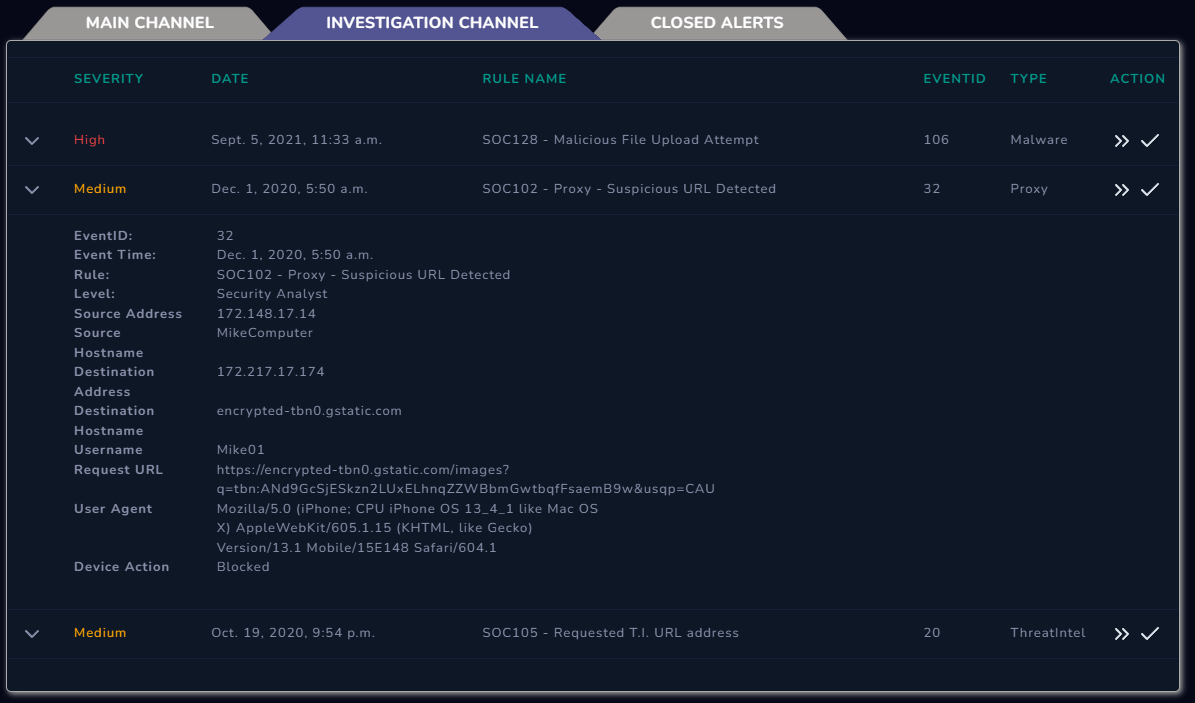
You can view newly created alerts in the "Main Channel" and think of this channel as a shared channel. Your teammates are not visible in this simulation, but in a real work scenario, your teammates will be able to see this panel. After you select the alert you want to work on, click the Take Ownership button in the Action area to take ownership of the alert and direct it to the Investigation Channel. This way, your teammates can see which alert you are actively working on. At the same time, this will help them see which alerts you are already working on so they can select other alerts. This way, your team can quickly review all alerts.
When you click on the alert, you can see the details of the alert. This allows you to gather the information (hostname, IP address, file hash information, etc.) required to investigate.
Note that from time to time, false alerts may be generated in the SIEM. A good SOC analyst would be able to identify such situations and provide feedback to the team, thereby contributing to the efficiency of the SOC team.
Let's say that an SIEM team has put together a rule set that generates alerts for URL addresses that have the word "union" in them and is trying to detect SQL injections.
A user did a search using "https://www.google.com/search?q=sql+union+usage", and an alert was created in the SIEM, it looks like there is no obvious threat. The alert was generated because the keyword "union" was included in the URL. These types of anomalies can be shared with the SIEM team to optimize the alerting process.